

If you’re just getting started with crypto, one of the first practical skills worth learning is adding networks to your wallet. MetaMask works on Ethereum by default, but a huge part of today’s activity happens on faster, cheaper networks — and Polygon is one of the biggest of them. Adding Polygon to MetaMask takes about two minutes, and once it’s there you’ll be able to send, receive, and swap tokens at a fraction of Ethereum’s cost.
In this beginner-friendly guide, you’ll learn exactly how to add the Polygon network to MetaMask in 2026 — step by step, with the correct settings — plus how to fund your wallet, move tokens around, fix the most common issues, and avoid the scams that specifically target people adding new networks.
id=”what-polygon-is”>What Polygon Is (And Why You’d Add It)
Polygon is one of the most widely used blockchain networks in crypto. It’s often described as a “scaling solution” for Ethereum: it processes transactions much faster and far more cheaply than Ethereum’s main network, while staying compatible with Ethereum-based wallets, apps, and tokens.
Why does compatibility matter? Because it means your existing MetaMask wallet — the same one you use for Ethereum — works on Polygon without needing a new seed phrase or a separate wallet app. One wallet, many networks. You just tell MetaMask how to connect to Polygon, and it can switch between networks whenever you want.
The native gas token on Polygon is POL (previously called MATIC — you may still see both names, and I’ll explain the difference below). Every transaction on Polygon costs a tiny amount of POL, typically fractions of a cent. Compare that to Ethereum, where a single transaction can cost several dollars or more during busy periods, and the appeal becomes obvious.
Polygon hosts thousands of apps: decentralized exchanges, NFT marketplaces, games, lending protocols, and stablecoin payment rails. If you’re planning to bridge funds from other networks, read our guide on how to bridge USDC from Polygon to Arbitrum once you’re set up — but first, let’s get the network added.
How to Add Polygon to MetaMask: Step by Step
Adding a network to MetaMask is simple, but the settings have to be exactly right. One wrong digit in the chain ID can connect you to a different network — or to a malicious RPC endpoint someone set up to siphon data. Follow these steps carefully and double-check each value.
Step 1: Open MetaMask and unlock your wallet. Click the MetaMask icon in your browser toolbar (or open the mobile app) and enter your password. If you haven’t installed MetaMask yet, set it up first and back up your seed phrase — you should already have done this before connecting to any new network.
Step 2: Open the network selector. At the top of the MetaMask window, you’ll see the current network name (usually “Ethereum Mainnet”). Click it to open the network dropdown menu.
Step 3: Click “Add network.” In the dropdown, select “Add network.” MetaMask will take you to a screen with popular networks pre-listed — Polygon is usually one of them.
Step 4a (easy method): Add from the popular list. If Polygon appears in the list, click “Add” next to it, review the details, and click “Approve.” MetaMask will automatically fill in the correct settings. This is the safest method for beginners because there’s no room for typos.
Step 4b (manual method): Enter the settings yourself. If Polygon isn’t listed, click “Add a network manually” and enter these exact values:
- Network name: Polygon Mainnet
- New RPC URL: the official Polygon RPC endpoint (find it on Polygon’s official documentation page — type the documentation address into your browser yourself, never click a link someone sent you)
- Chain ID: 137
- Currency symbol: POL
- Block explorer URL: the official Polygon block explorer (again, find it via Polygon’s official docs)
The most important value is the Chain ID: 137. This number uniquely identifies the real Polygon network. If you ever see a prompt asking you to add a network claiming to be Polygon but showing a different chain ID, decline it — that’s a red flag.
Step 5: Switch to Polygon and verify. After adding, MetaMask should switch to Polygon automatically. Look at the network name at the top — it should now say Polygon. Your wallet address stays the same (addresses are identical across EVM-compatible networks), but your balance display will reflect tokens on Polygon, which will initially be empty.
That’s it — five steps, two minutes. If you’re adding more networks later, the process is identical; our Arbitrum setup guide and Linea setup guide cover those networks specifically.
How to Fund Your Polygon Wallet
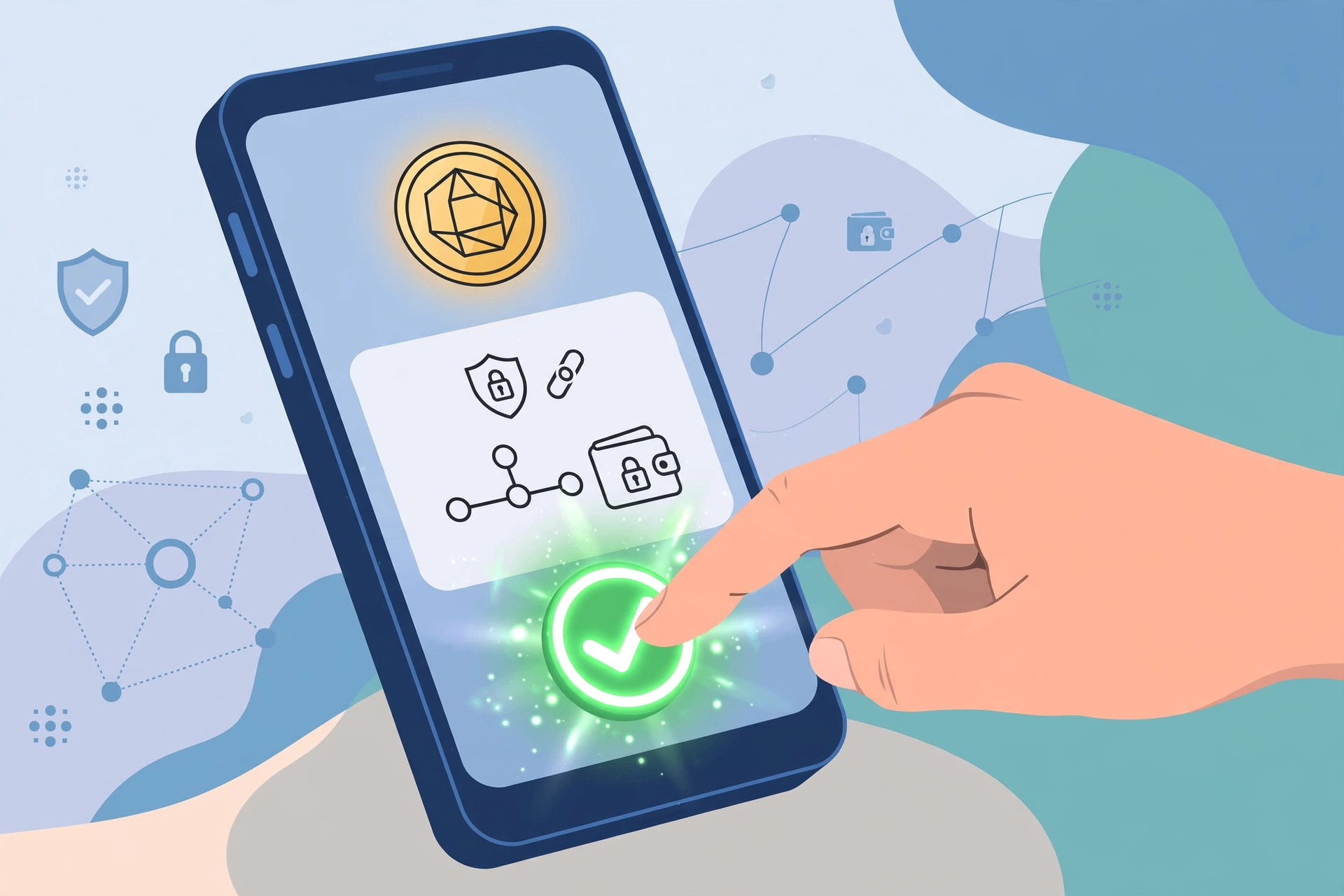
Adding the network is only half the job. To actually do anything on Polygon, you need its native gas token — POL — to pay transaction fees, plus whatever tokens you want to use (USDC, ETH, etc.).
About MATIC vs POL: Polygon’s native token was originally called MATIC. In 2024, the network began migrating to POL as part of a technical upgrade. Most wallets, including MetaMask, now label the network currency as POL. If you hold old MATIC, it can be converted to POL, and many exchanges handle this automatically. Don’t panic if you see both names — they’re part of the same ecosystem.
There are three main ways to fund your Polygon wallet:
1. Buy on a centralized exchange and withdraw to Polygon. Many exchanges let you buy POL directly and withdraw it to the Polygon network. When withdrawing, make sure you select Polygon as the withdrawal network — not Ethereum. Sending POL on the wrong network means your funds land somewhere you can’t easily reach them.
2. Bridge from another network. If you already hold crypto on Ethereum or another network, you can use a bridge to move it to Polygon. Bridges lock your tokens on the source chain and release equivalent tokens on Polygon. Bridging usually takes a few minutes and costs a small fee on each side. Start with a small test amount the first time — this is the golden rule for every new bridge you use.
3. Receive from another person. Give someone your wallet address (it starts with 0x, same address as your Ethereum wallet) and ask them to send POL or tokens on the Polygon network. Remember: they must send on Polygon specifically. Tokens sent on a different network to your address won’t appear in your Polygon view.
Whichever method you use, keep a little extra POL in reserve for gas. There’s nothing more frustrating than holding tokens you can’t move because you spent your last bit of gas. Think of it like keeping a few dollars in your car for tolls.
Sending and Receiving on Polygon
Once funded, using Polygon feels exactly like using Ethereum in MetaMask — same buttons, same address, just far cheaper transactions.
To receive: Click your account name at the top of MetaMask to copy your address, then share it with the sender. Make sure MetaMask is switched to the Polygon network when you check for the incoming funds. A transaction on Polygon typically confirms within seconds, so you won’t be waiting long.
To send: Click “Send,” paste the recipient’s address, enter the amount, and confirm. MetaMask will show an estimated gas fee — on Polygon this is usually well under a cent. Review the details (correct network, correct address, correct token) and hit confirm. The transaction generally finalizes in a few seconds.
Switching tokens: POL covers gas, but most of your activity will involve other tokens — stablecoins like USDC, or assets you bridged over. Tokens you receive usually appear automatically. If one doesn’t, you can add it manually using its contract address — our guide to bridging between networks and token basics cover this in more detail.
| Feature | Polygon PoS | Polygon zkEVM |
|---|---|---|
| Chain ID | 137 | 1101 |
| Native gas token | POL | ETH |
| Typical transaction fee | Fractions of a cent | A few cents |
| Technology | Proof-of-stake sidechain | Zero-knowledge rollup |
| App ecosystem | Very large, established | Smaller, growing |
| Best for beginners | Yes — this is the one most guides mean by “Polygon” | Advanced users exploring newer tech |
A note on Polygon PoS vs Polygon zkEVM: These are two different networks that share the Polygon name. When guides (including this one) say “add Polygon to MetaMask,” they mean Polygon PoS (chain ID 137) — the main, established network with the big ecosystem. Polygon zkEVM (chain ID 1101) is a separate, newer network. Make sure you add the right one for what you want to do, and never assume they’re interchangeable.
Troubleshooting Common Problems
Most issues beginners hit with Polygon in MetaMask are quick fixes. Here are the common ones:
“I added Polygon but my tokens aren’t showing.” Your tokens are safe — they’re tied to your address on the network, not to MetaMask’s display. First, confirm you’re actually switched to Polygon (check the network name at the top). Then check your address on a Polygon block explorer. If the tokens appear there, they’re yours — MetaMask just isn’t displaying them yet, and you can add them manually by contract address.
“My transaction failed / is stuck.” On Polygon this is rare because fees are so low, but it can happen during network congestion. Check the transaction on a block explorer: if it failed, your funds never left your wallet (you only lost the tiny gas fee). If it’s pending, wait a few minutes — Polygon congestion usually clears quickly. You can also speed up or replace the transaction by resubmitting with a slightly higher gas fee.
“It says I don’t have enough gas.” You need POL in your wallet to pay for transactions — not just the token you’re trying to send. If you bridged USDC over but have zero POL, you can’t move anything until you get some POL. Ask a friend, use a faucet (small free-gas services exist for test purposes), or buy a small amount on an exchange and withdraw it to Polygon.
“MetaMask keeps asking me to add a network when I visit a site.” Legitimate apps will prompt you to add or switch to Polygon automatically — that’s normal. But always read the prompt: verify the chain ID is 137 and the network name says Polygon before approving. Malicious sites use the exact same prompt style to trick you into adding a fake network. When in doubt, decline the prompt and add the network manually from the popular list instead.
“I sent tokens on the wrong network.” This is the most stressful mistake. If you withdrew from an exchange on the wrong network, check whether the exchange supports recovering it — some do, for a fee. If you sent between your own wallets on the wrong network, the tokens may be recoverable if you control the receiving address on that network. Don’t panic and don’t trust random “recovery services” that contact you — they’re scams.
Scams to Watch Out For
Adding a new network is exactly the moment scammers love to strike, because beginners are already clicking through unfamiliar prompts. Here’s what to watch for:
Fake RPC endpoints. The RPC URL is the server your wallet talks to. If you add a malicious RPC, an attacker could log your activity or feed you fake data — for example, showing you a fake balance to trick you into a “support” scam. Only use RPC endpoints from Polygon’s official documentation or MetaMask’s built-in popular-networks list. Never paste an RPC URL from a random forum post, YouTube comment, or DM.
Fake “add network” prompts. As mentioned above, malicious websites mimic the legitimate “add this network?” prompt. The giveaway is usually a wrong chain ID or a slightly-off network name. Get in the habit of reading every network prompt before approving it — it takes three seconds.
Fake support agents. Nobody from MetaMask or Polygon will ever contact you first, and no legitimate support agent will ever ask for your seed phrase. If someone DMs you offering to “help” after you post about a problem, block them. This is the single most common way beginners lose funds.
Fake POL/MATIC tokens. Anyone can create a token and name it “POL” or “MATIC.” Scammers airdrop fake tokens into wallets, hoping you’ll try to swap them on a malicious site. Real POL has a verified contract address — always verify contract addresses on the official block explorer before interacting with a token you didn’t expect to receive.
FAQs
The Bottom Line
Adding Polygon to MetaMask takes two minutes: open the network selector, add Polygon from the popular list (or manually with chain ID 137), and switch over. Fund it with a little POL for gas, start with small test transactions, and always verify chain IDs and contract addresses before trusting anything new.
Once you’re comfortable, Polygon opens the door to cheap, fast crypto activity — and the same skills transfer to every other network you’ll add later. Take it slow, keep your seed phrase private, and you’ll be navigating like a pro in no time.
This guide is for education only — not financial advice.


1 Comment
Pingback: Is the Polygon PoS Bridge Safe? Review (2026)